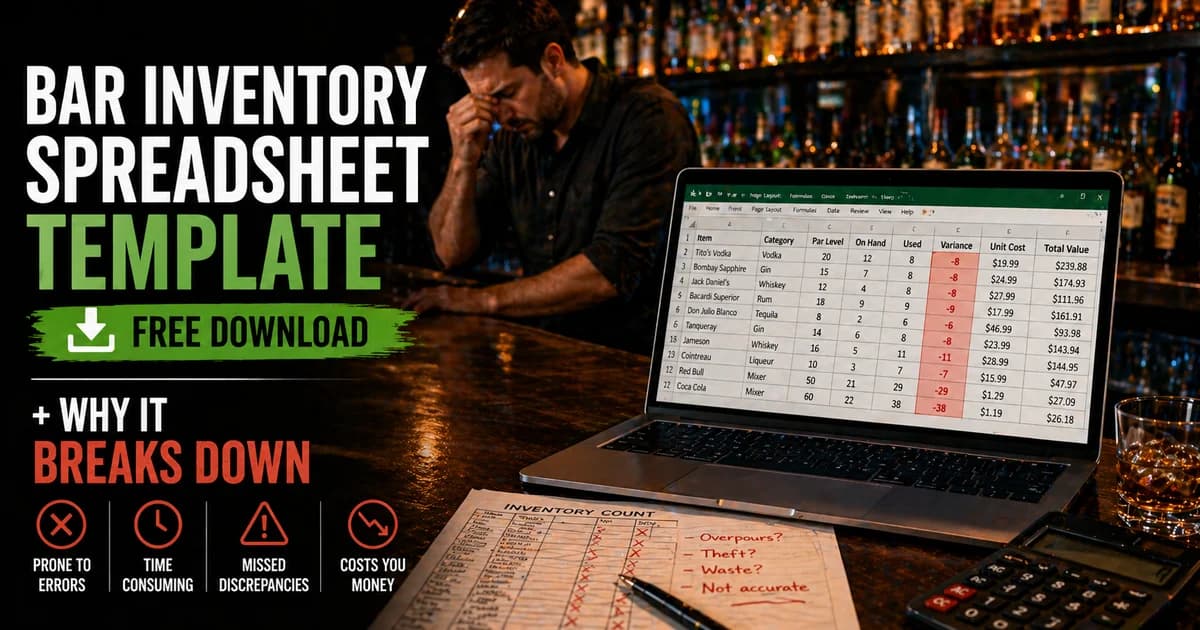
If you're running bar inventory on a spreadsheet right now, or you've been meaning to start and need a template to work from, this is it. Download the free bar inventory spreadsheet below, open it in Excel or Google Sheets, and you have a working system in about 20 minutes.
It won't do everything. No spreadsheet can. But it covers the fundamentals: a clean item list, a weekly count sheet with auto-calculated usage and variance, and a purchases log so your numbers don't drift. We'll walk through every tab, how to fill it in, and, because this guide is honest, exactly where the spreadsheet approach stops working and what bar owners typically move to when that happens.
Free Bar Inventory Spreadsheet Template
4 tabs: Item List · Weekly Count with variance formulas · Purchases Log · Instructions. Works in Excel and Google Sheets.
A spreadsheet can teach the workflow, but the source data still needs to come from actual sales and menu movement. Toast's menu reports overview is a useful POS reference for the item, modifier, and menu-group data a spreadsheet eventually needs to reconcile against.
What's Inside the Spreadsheet
The template has four tabs. Each one covers a distinct part of the bar inventory process. Here's what each tab does and how to use it.
Tab 1: Item List
This is your master product catalog, the foundation everything else references. Every item you track gets one row: product name, category, bottle or unit size, cost per unit, par level, reorder point, and storage location.
The template comes pre-filled with 30 common items across spirits, bottled beer, draft kegs, wine, mixers, juices, and garnishes. Replace these with your actual products. The one rule that matters most here: use a single, consistent name for each product. "Tito's Vodka," "Tito's 1.75L," and "Tito's bottle" should all be the same row, not three separate items. Inconsistent naming is the fastest way to make your variance reports unreadable.
- ▸Product name, use the same name everywhere, every week.
- ▸Category, group by spirits, beer, wine, mixers so you can filter and sort.
- ▸Bottle / unit size, important for calculating usage in consistent units.
- ▸Cost per unit, what you actually paid per bottle, keg, or case. Update when prices change.
- ▸Par level, how many you want on hand at the start of a week.
- ▸Reorder at, the quantity that triggers a purchase order.
- ▸Storage location, front bar, back bar, walk-in, storage room. Count by zone, never at random.
Tab 2: Weekly Count
This is the tab you open every count cycle. For each item, you fill in three numbers: opening quantity (last week's closing count), purchases received during the week, and closing quantity (what you just counted). The rest calculates automatically.
- 1Opening Qty, carries over from last week's closing count. First time using it, do a full count to establish this baseline.
- 2Purchases, total units received during the week. Pull this from Tab 3.
- 3Closing Qty. Your count right now. Count the same way every time (tenths for partials, consistent zone order).
- 4Actual Usage, auto-calculated: Opening + Purchases − Closing. This is what physically left your shelves.
- 5Expected Usage. This one you fill in manually from your POS data and drink recipes. More on this below.
- 6Variance, auto-calculated: Actual Usage − Expected Usage. Positive means more left than expected.
- 7Variance ($), auto-calculated: Variance × Unit Cost. This is what the gap costs you in real dollars.
Tab 3: Purchases Log
Log every delivery and every emergency store run here the day it happens. Date, vendor, item, quantity received, unit cost, total cost, and invoice number. Missing purchases are the single most common reason bar inventory numbers come out wrong. If a delivery doesn't make it into this log, your actual usage calculation overstates what was used, and you'll be chasing a variance that doesn't exist.
- ▸Log distributor deliveries the day they arrive, not end of week.
- ▸Emergency liquor store runs count. Log them with "RECEIPT" as the invoice number.
- ▸If a delivery is short or damaged, log only what you actually received.
- ▸The total cost column calculates automatically from qty × unit cost.
Tab 4: Instructions
A plain-English walkthrough of the whole process, including a section on where the spreadsheet breaks down (covered below). Share this tab with whoever helps with inventory so your team counts the same way every week. If the spreadsheet is already straining, the full bar inventory guide covers what the next step looks like.
The Most Important Number: Expected Usage
Most bar owners know what they have. Very few know what they should have used. That's the difference between a count and an actual inventory system.
Expected usage is what your bar should have consumed based on your POS sales and your drink recipes. If your margarita recipe calls for 2 oz of tequila and your POS shows 60 margaritas sold this week, expected tequila usage is 120 oz, roughly 2.5 standard 750ml bottles. If your actual usage shows 3.5 bottles disappeared, you have a one-bottle-plus variance worth investigating. That's shrinkage, and it's costing you money whether you're measuring it or not.
To fill in Expected Usage manually, you need to pull your POS sales report for the week, look up the recipe for every drink that uses the item, multiply qty sold × oz per drink, and convert to bottle units. For a bar carrying 30 spirits across 40+ cocktails, this takes 30 to 60 minutes of manual math every single count. That's why it's the first thing that gets skipped.
How to Set Up the Spreadsheet for Your Bar
- 1Open Tab 1 (Item List) and replace the sample products with your actual inventory. Keep categories consistent.
- 2Do a full opening count of every product. Enter these quantities in the "Opening Qty" column of Tab 2.
- 3Each week, log all purchases in Tab 3 as they arrive.
- 4At count time, enter closing quantities in Tab 2. Pull your week's purchases from Tab 3 into the Purchases column.
- 5Pull your POS sales report and calculate Expected Usage for your top items. Enter manually in Tab 2.
- 6Review the Variance ($) column. Focus on the highest dollar variances first.
Where the Spreadsheet Stops Working
This template is a solid starting point. But it has real limitations, and the honest thing to do is name them, because hitting these walls is what usually sends bar owners looking for something better.
- ▸<strong>No POS connection.</strong> You copy sales numbers by hand from your POS report every count. It's 15 to 30 minutes of manual work per cycle that's also prone to typos.
- ▸<strong>Expected Usage requires manual math.</strong> The spreadsheet cannot pull your recipes and calculate what should have been used. You do that calculation by hand for every item, every week.
- ▸<strong>No recipe database.</strong> If your bar runs 50 cocktails across 20 spirits, tracking expected usage without a recipe system is nearly impossible to do accurately.
- ▸<strong>No alerts.</strong> The sheet doesn't tell you when something looks wrong. You only see a problem when you open the file and look for it.
- ▸<strong>Version control breaks down.</strong> Who has the current file? Did someone overwrite last week's closing counts? Shared spreadsheets on Google Drive help, but multi-user editing during a count creates errors.
- ▸<strong>No purchase scanning.</strong> Every invoice gets typed in by hand. For a bar receiving 3 to 4 deliveries a week, that's a significant time sink.
Most bars hit these limits somewhere between months two and six of running a spreadsheet system. The counts are happening, but the Expected Usage column stays blank because the math is too slow, the variance reports aren't trustworthy, and the whole thing starts to feel like more trouble than it's worth.
When You're Ready for Something That Does This Automatically
BarGuard was built specifically to replace this workflow. It connects your purchases, inventory counts, drink recipes, and POS sales, so the Expected Usage column fills in automatically from real sales data, not manual math. The variance report runs itself. You count, you submit, you see where the gaps are.
Where the spreadsheet needs you to calculate that 60 margaritas × 2 oz tequila = 2.5 bottles expected, BarGuard pulls that from your Square, Clover, Toast, or Lightspeed POS directly. It also flags over-pouring patterns, shows variance trends over time, and sends alerts when a high-value item goes significantly over expected usage, without you having to open a file and look.
The spreadsheet is a good first step. It's better than paper counts and better than nothing. But if you're losing 20 to 25% of inventory to shrinkage and spending an hour every week on manual math to track it, the system itself is costing you more than it's saving.
Download the Free Template
Free bar inventory spreadsheet, Excel and Google Sheets compatible.
How to Use the Template Without Creating Spreadsheet Chaos
A spreadsheet is only useful if everyone treats it as the single source of truth. The fastest way to break it is to let managers download copies, rename tabs, delete formulas, or enter new item names without checking the item list. Before you use the template, decide who owns it, where it lives, and how changes get approved.
If you use Google Sheets, keep one master file and restrict edit access to managers who are trained on the process. If you use Excel, store the file somewhere shared and versioned. Do not email count sheets back and forth. Once there are multiple versions, no one knows which number is real.
- ▸Lock formula columns so counters cannot overwrite variance calculations.
- ▸Use dropdown categories for spirits, beer, wine, mixers, and supplies.
- ▸Keep a change log when item names, costs, par levels, or recipes change.
- ▸Archive a copy after each count cycle so you can compare history.
- ▸Assign one manager to approve new products before they appear on the count sheet.
When a Spreadsheet Is Good Enough
A spreadsheet can be the right starting point for a small bar with a short menu, one storage area, and a manager who is disciplined about weekly counts. If your goal is to stop guessing, organize purchases, and begin reviewing simple variance on top products, the template can get you moving quickly.
It is also a useful training step. A spreadsheet forces managers to understand the math behind inventory: opening plus purchases minus closing equals actual usage. Once they understand that, the value of automated POS and recipe connections becomes obvious.
When You Have Outgrown the Spreadsheet
You have probably outgrown the spreadsheet when the work of maintaining it becomes the reason inventory does not happen. If expected usage takes an hour to calculate, managers will skip it. If item names keep splitting into duplicates, variance will be unreliable. If nobody enters purchases until the end of the week, the report will point at the wrong problem.
- ▸You have more than one bar station or storage location.
- ▸Your menu has enough cocktails that recipe math is slowing down review.
- ▸Managers spend more time fixing the sheet than using the results.
- ▸You need POS-based expected usage instead of manual estimates.
- ▸You want variance sorted by dollar impact automatically.
At that point, the spreadsheet has done its job. It helped you build the habit. The next step is a connected bar inventory app that keeps the workflow but removes the manual math.
The Best Next Step After the Download
After you download the template, do one clean opening count before you start entering weekly activity. That opening count becomes the baseline for every variance calculation that follows. If the baseline is wrong, the next report will be wrong even if every formula works. Start clean, then make the weekly rhythm simple enough that managers will actually maintain it.
BarGuard Catches What You Can't See
Connect your POS, count your inventory, and let BarGuard show you exactly where the gaps are, automatically, every week.